AI Product Image Generator for Online Stores
Turn a product reference photo into an ecommerce listing image or campaign visual. Change the background, then check the packaging, color and label before publishing.
Prepare your product photo
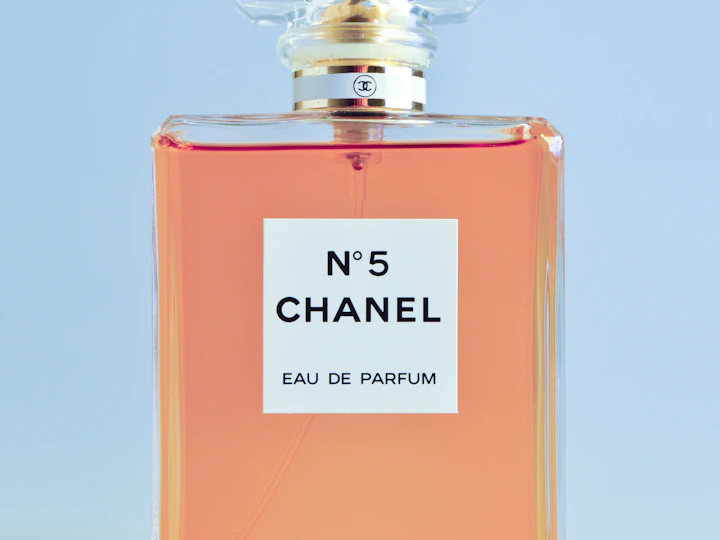
Photograph the actual item in even light with the full package in the frame. Use the correct variant, especially when the product comes in several colors or package sizes. Upload the photo in the Image Studio and choose a model that supports editing from a reference.
Describe the edit
Try this brief with a perfume bottle reference: “Keep the bottle, cap and label facing the same way. Replace the backdrop with matte ivory and add a soft shadow to the left. Center the product with generous space around it. Add no text or props.” When comparing treatments, keep the same source and aspect ratio so you can judge the background on its own.
Make one image for the listing and another for the campaign
A square composition with clear lighting is a useful starting point for the product card. For campaign art, leave room for a headline and add the offer in your editor. Confirm the dimensions your storefront or ad placement needs before exporting.
Compare the result with the source photo
Check material color, the outline of the package, text spelling and logo placement side by side. If the generated image changes important details, use the original for the listing. Consult the six-angle guide if you need to show the product from different sides.
Common questions
Do I need to connect my online store?
Download the finished image from your TRIKO library and upload it to your store. Start with your own photo or one you have permission to use.
Can I change the background and preserve the logo?
Specify which parts should stay fixed and review the label after generation. Correct any changes to important lettering before you publish.